
How to Integrate Your POS with FBR: A Step-by-Step Guide (2026)
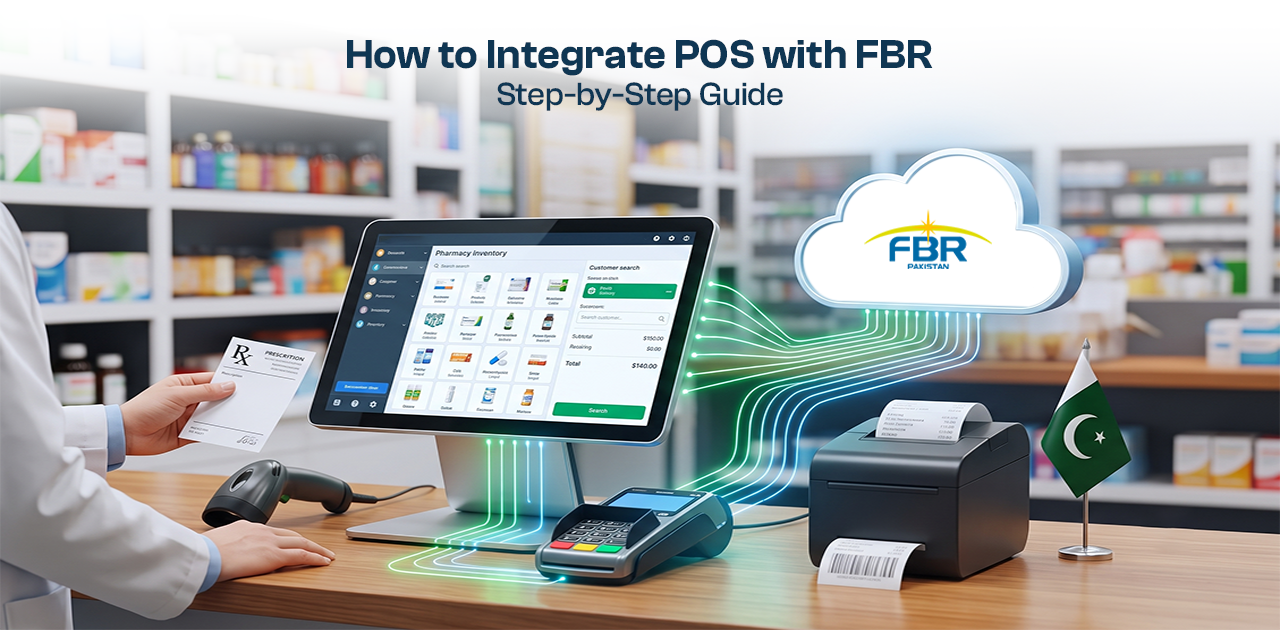
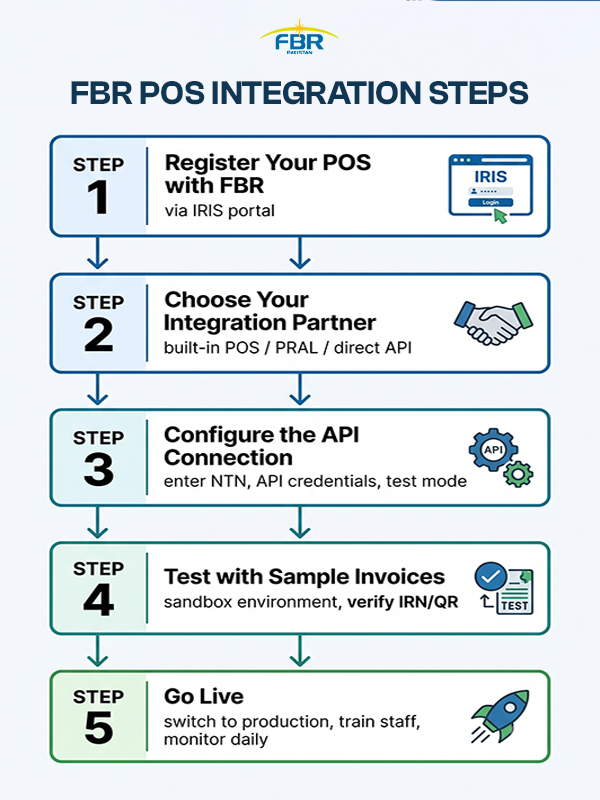
POS-to-FBR integration requires (1) registering with FBR as a Tier-1 retailer, (2) choosing a licensed integrator or FBR-integrated POS, (3) configuring the API connection, (4) testing with sample invoices, and (5) going live with real-time IRN generation. This guide walks you through each step with technical details, common errors, and what to expect at every stage.
Before You Start — What You Need
Integrating your POS with FBR isn't a plug-and-play setup. You'll need four things in place before you begin:
Active NTN (National Tax Number) — Your business must be registered with FBR. If you don't have an NTN yet, apply through the IRIS portal first.
Tier-1 retailer classification — FBR's integration requirement applies to Tier-1 retailers. If you meet any one of seven criteria (including operating in an air-conditioned mall, accepting card/digital payments, or being part of a chain store), you qualify. Read our complete Tier-1 retailer requirements guide to confirm your status.
Stable internet connection — Every invoice transmitted to FBR requires an active internet connection. If your location has frequent outages, your POS must queue invoices offline and push them when the connection returns.
An FBR-compatible POS system — Your current POS must either have built-in FBR integration or support API connectivity. If it doesn't, you'll need to upgrade or use middleware.
Without these four elements, you can't complete the integration process.
Three Integration Paths
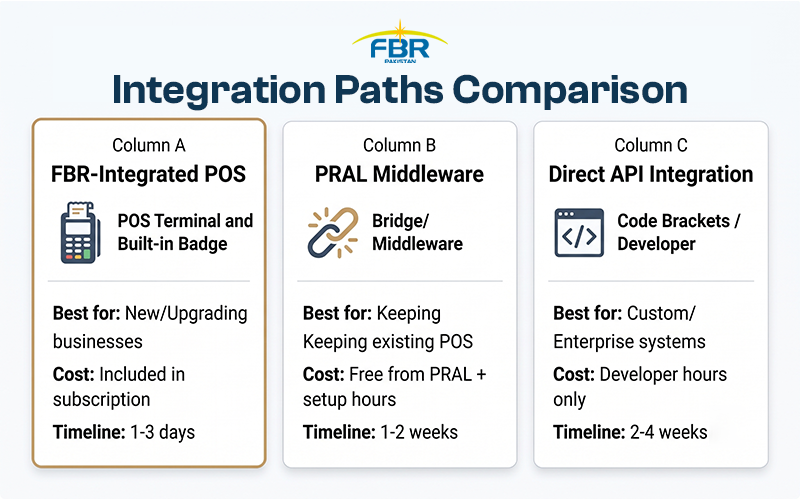
There are three ways to connect your POS to FBR's system. The right one depends on your current setup and technical capacity.
| Path | Best for | Cost | Setup time |
|---|---|---|---|
| A. FBR-integrated POS (built-in) | New businesses or upgrading POS | Included in POS subscription | 1-3 days |
| B. PRAL middleware (SDC) | Businesses keeping existing POS | Free from PRAL + setup hours | 1-2 weeks |
| C. Direct API integration | Custom or enterprise POS systems | Developer hours only | 2-4 weeks |
 Path A: Built-In FBR Integration
This is the simplest route. Some POS systems — including EloERP — have FBR integration built into the software. You toggle it on in settings, enter your NTN and API credentials, and the POS handles the rest.
Best for: Businesses buying a new POS or replacing an old one. If you're already shopping for a POS, choose one with built-in compliance.
Cost: Included in your POS subscription. For example, EloERP includes FBR integration on all plans — pricing available on request.
Path B: PRAL Middleware (SDC)
If you have an existing POS that doesn't support FBR integration natively, PRAL (Pakistan Revenue Automation Limited, FBR's technical partner) offers free middleware called the Sales Data Controller (SDC). The SDC sits between your POS and FBR's servers, translating your sales data into FBR's required format.
How it works: You install the SDC software on the same computer as your POS. The SDC reads your sales data (usually via database connection or API), converts it to FBR's XML invoice schema, and transmits it to FBR. FBR returns the IRN and QR code, which the SDC sends back to your POS for printing on receipts.
Best for: Businesses that want to keep their current POS but need to comply with FBR's requirements.
Cost: PRAL provides the SDC at no charge. You pay only for the setup and configuration (if you hire a technician or licensed integrator to install it).
Path C: Direct API Integration
If you run a custom-built or enterprise POS, you can integrate directly with FBR's API. FBR publishes a WSDL specification and REST endpoints for invoice transmission. Your development team implements the connection according to FBR's technical documentation.
Best for: Large retailers or franchises with in-house development teams and custom POS systems.
Cost: Developer hours. Expect 2-4 weeks of work for a developer familiar with XML/JSON APIs and FBR's invoice schema.
Technical requirements: Your developer will need to handle authentication (API keys), XML invoice formatting per FBR's schema, error handling, and retry logic for failed transmissions.
Step 1 — Register Your POS with FBR
Before you can transmit invoices, you must register your POS terminals with FBR. Each branch and each terminal needs its own registration.
How to register:
Log into IRIS — Visit https://iris.fbr.gov.pk and log in with your NTN credentials.
Navigate to Digital Invoicing — In the IRIS dashboard, find the "Digital Invoicing" or "POS Registration" section. (The exact menu location may vary; look under Sales Tax or Tier-1 Retailer sections.)
Submit a POS registration request — For each branch or terminal, submit a registration form. You'll provide your business details, the terminal location (address), and the type of integration you're using (built-in, PRAL SDC, or direct API).
Receive API credentials — Once approved (usually 1-3 business days), FBR issues your API key or token. This credential authenticates your POS when transmitting invoices.
Register each terminal separately — If you have multiple branches or multiple POS terminals in one location, each one must be registered individually. A restaurant with three checkout counters needs three registrations.
Important: Keep your API credentials secure. Treat them like a password — anyone with your API key can transmit invoices under your NTN.
Step 2 — Choose Your Integration Partner (If Not Built-In)
If your POS doesn't have built-in FBR integration, you'll need help from a licensed integrator or PRAL.
Finding a licensed integrator
FBR publishes aggregate integration statistics and maintains a roster of licensed integrators — software houses and chartered accountant firms authorized to perform POS integration. Check fbr.gov.pk or contact PRAL for the current list of authorized integration partners.
You can also install and configure the system yourself without hiring a service provider if you have the technical capacity.
What to ask an integrator
Before you hire, verify they can handle your specific setup. Use our 8-point checklist for choosing FBR-compliant software to evaluate vendors. Key questions:
- Do you support my POS brand/model?
- What is your installation timeline?
- What happens if the integration fails after go-live?
- Do you provide ongoing support for FBR updates?
PRAL's free SDC option
If cost is a concern, contact PRAL directly. They provide the SDC middleware at no charge, though you may need to pay a technician to install and configure it.
Step 3 — Configure the API Connection
Configuration steps vary depending on your integration path.
For built-in POS (Path A):
Most FBR-integrated POS systems make this a settings toggle:
- Open your POS settings (usually under Sales Tax or Compliance).
- Enable FBR Digital Invoicing.
- Enter your NTN and the API credentials you received from IRIS.
- Select the API environment (Test or Production — start with Test).
- Save the settings.
The POS will validate your credentials by pinging FBR's server. If successful, you're ready to test.
For PRAL middleware (Path B):
The SDC installation is more technical:
Install the SDC software — Download the SDC from PRAL's website or get it from your licensed integrator. Install it on the same computer as your POS.
Connect SDC to your POS — The SDC needs access to your sales data. This usually means pointing the SDC to your POS database (read-only access) or configuring a webhook/API endpoint in your POS that pushes sales data to the SDC.
Configure the FBR endpoint — In the SDC settings, enter the FBR API endpoint URL and your API credentials. Start with FBR's test environment.
Map your invoice fields — The SDC needs to know which fields in your POS data correspond to FBR's required invoice fields (item name, quantity, price, tax rate, etc.). This is called field mapping and may require help from your POS vendor.
For direct API (Path C):
Your developer implements FBR's WSDL or REST endpoints:
Review FBR's technical documentation — FBR publishes the API specification, including required invoice fields, authentication methods, and response codes.
Implement authentication — Your code must authenticate each API request using the credentials FBR provided. This usually involves sending your API key in the request header.
Format invoices as XML or JSON — FBR expects invoices in a specific schema. Your code must convert your POS's sales data into FBR's format before transmission.
Handle responses — FBR returns an IRN (Invoice Registration Number) for each successful invoice. Your code must capture this IRN and store it with the sale record so it can be printed on the receipt.
Implement retry logic — If FBR's server is down or your internet drops, your code must queue the invoice and retry transmission automatically.
Test mode vs. production
FBR provides two API environments:
- Test (sandbox): Use this to test your integration without affecting your live tax records. Submit dummy invoices, verify the IRN and QR code are generated correctly, and troubleshoot errors.
- Production (live): Once testing is complete, switch to the production endpoint. Every invoice you submit here is reported to FBR as a real transaction.
Never test on the production endpoint — FBR will record those dummy invoices as actual sales, creating a tax mismatch.
Step 4 — Test with Sample Invoices
Before you go live, run at least 5-10 test invoices through FBR's sandbox environment.
What to verify:
IRN returned for every invoice — Each test sale should return a unique IRN from FBR. If you don't get an IRN, the invoice wasn't registered.
QR code generated correctly — The QR code on your receipt should encode the IRN, your NTN, the invoice date/time, and the total amount. Scan it with the Tax Asaan mobile app to verify.
Data visible in IRIS portal — Log into IRIS and check that your test invoices appear in your sales log. The totals should match what you submitted.
Error handling works — Intentionally submit a malformed invoice (e.g., missing a required field) and verify your POS displays a clear error message. Your cashiers need to understand what went wrong.
Common test failures and fixes:
| Error | Cause | Fix |
|---|---|---|
| Authentication failed | Wrong API key or expired token | Regenerate credentials in IRIS and update your POS settings |
| NTN mismatch | POS NTN doesn't match the NTN registered in IRIS | Verify you entered the correct NTN in your POS configuration |
| Invalid invoice format | Missing required fields (item name, tax rate, etc.) | Review FBR's invoice schema and ensure all mandatory fields are populated |
| Timeout / No response | Slow internet or FBR server load | Implement retry logic with exponential backoff (retry after 5s, then 15s, then 60s) |
| QR code scan fails | QR data format incorrect | Check that the QR encodes IRN + NTN + date + total; consult FBR's QR specification |
If your test invoices succeed consistently, you're ready to go live.
Step 5 — Go Live
Switching from test to production is usually a one-line change: update the API endpoint URL in your POS or SDC settings from FBR's sandbox to the live production server.
First live invoice:
Process a real sale and watch for the IRN. It should appear within 2-5 seconds. Print the receipt and verify the QR code is present.
If the IRN doesn't appear, check your internet connection and your API credentials. If the error persists, switch back to test mode and troubleshoot.
Train your cashiers:
Your staff need to know:
- What the QR code on the receipt means: It's proof the sale was reported to FBR. Customers can scan it to verify the invoice is genuine.
- What to do if the FBR connection fails: If the internet drops or FBR's server is down, the POS should queue the invoice and transmit it automatically when the connection returns. Cashiers should note this on the receipt (e.g., "FBR transmission pending").
- How to reprint a receipt if needed: Customers may ask for a duplicate. Ensure your POS can reprint with the same IRN — never generate a new IRN for a reprint.
Set up monitoring:
Don't assume integration will stay perfect forever. Check daily:
- FBR transmission log in your POS dashboard: How many invoices were sent today? Did any fail?
- IRIS portal reconciliation: Once a week, log into IRIS and compare the total sales FBR received vs. what your POS recorded. They should match.
- Error alerts: Configure your POS to notify you (email or SMS) if invoices fail to transmit for more than 24 hours.
Offline handling (critical for Pakistan):
Power and internet outages are common. Your POS must queue invoices offline and push them automatically when the connection returns. This is non-negotiable — if your POS can't handle offline mode, you'll have compliance gaps every time the internet drops.
Verify offline mode works: disconnect your internet, process a sale, reconnect, and confirm the invoice transmits without manual intervention.
After Go-Live — Ongoing Compliance
Integration isn't a one-time task. FBR expects continuous compliance.
Daily checks:
Open your POS dashboard and review the FBR transmission log. Look for:
- Invoices stuck in "pending" status (retry failed)
- Authentication errors (your API key may have expired)
- Transmission gaps (hours with no invoices sent despite sales activity)
Fix errors the same day. FBR auditors can spot gaps in your transmission history.
Monthly reconciliation:
Log into IRIS and compare your submitted invoice count and total sales against your POS records. Discrepancies indicate missed transmissions or duplicate IRNs — both are red flags in an audit.
Annual filing (Annexure-C):
Every year, you'll file Annexure-C with FBR, a summary of all sales tax collected. Keep accurate records of all transmitted invoices throughout the year to make this filing process easier.
What triggers an FBR inspection:
FBR auditors prioritize businesses with:
- Gaps in invoice transmission (days with no sales reported)
- Sudden drops in sales after integration (suspicious)
- Customer complaints that receipts lack QR codes or IRNs
- Tips from competitors or disgruntled employees
To prepare for an inspection:
- Keep a complete log of transmitted invoices (your POS should archive this)
- Print and file a sample of receipts with QR codes
- Have your IRIS login credentials ready to show real-time transmission records
- Ensure your POS and IRIS totals reconcile
FBR inspections are unannounced, but if your integration is clean and your records reconcile, you'll pass.
How EloERP Handles FBR Integration
EloERP offers Path A — built-in integration on every plan. Here's how it works in practice:
Setup is straightforward:
Navigate to your POS compliance or sales tax settings, enable FBR digital invoicing, enter your NTN and the API credentials you received from IRIS, and test the connection. Once verified, switch to production mode and you're live.
Every sale from that point forward is transmitted to FBR in real time.
Multi-branch support:
If you operate multiple locations, EloERP's HQ dashboard shows FBR transmission status per branch. You can see at a glance which branches have pending invoices or transmission errors.
Each branch gets its own API credentials (registered separately in IRIS). EloERP stores and manages them centrally, so branch staff don't need access to the IRIS portal.
Offline queue:
EloERP automatically queues invoices when the internet drops. When the connection returns, the system pushes all pending invoices to FBR without manual intervention. You'll see a "transmission resumed" notification in the dashboard.
Error handling:
EloERP displays clear error messages so the issue can be identified and corrected. Failed invoices are logged in the dashboard for easy review and retry.
Compliance reporting:
EloERP's reporting includes reconciliation tools to help you compare transmitted invoices against FBR records. Run these checks monthly to catch discrepancies before they become audit issues.
Cost:
FBR integration is included on all EloERP plans at no additional cost. Plans are billed annually or monthly on request. See the pricing page — pricing available on request. 15-day free trial, no card required.
See it in action: Book a free demo to watch FBR integration in real time.
Try it yourself: Start a 15-day free trial and test FBR integration in sandbox mode.
Sources: